
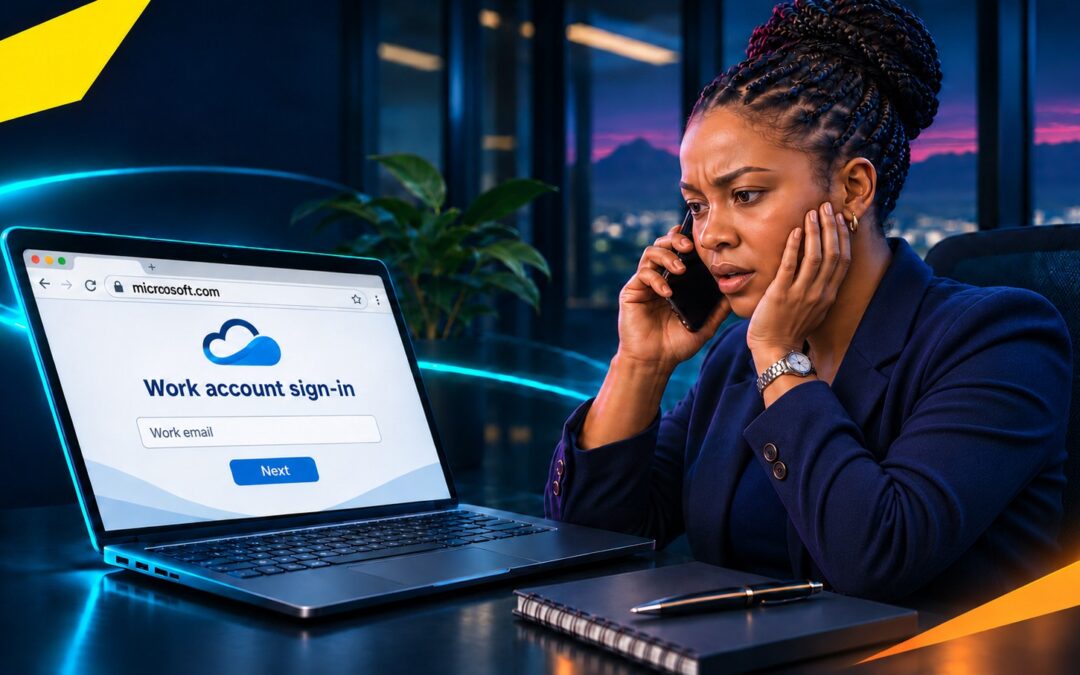
In short. Stop using the page and call IT support straight away on a number you already know. Tell them what you clicked, when it happened and whether you entered anything, approved a sign-in or opened a file. Call even if you’re unsure the link was fake.
If you manage a team, share this article with them and put the first-minute checklist somewhere they can find it.
Imagine you work at a small accounting firm. You’re expecting documents from a client, and an email arrives asking you to sign in to view them. You enter your work password. The page reloads and asks you to sign in again. This time, you notice the web address looks wrong.
That scenario is fictional, but the tactic is current. In November 2026, Microsoft reported a high-volume phishing campaign that disguised malicious emails as Microsoft 365 outage notifications. Recipients were told that messages had been held during an outage and would be deleted within 24 hours unless they clicked a “RESTORE MESSAGES” link. Microsoft assessed the campaign as likely credential phishing, although it did not confirm that credentials were captured.
The warning for staff is simple: urgency and familiar branding do not make a message genuine. Check Microsoft 365 service problems through the usual company or admin route rather than following a link in an unsolicited outage notification.
It’s tempting to close the tab and get back to work. This is the moment to make the call. Report it while the details are fresh, even if you’re unsure whether the page was fraudulent.
What if I only clicked?
Close the suspicious page and report it. Tell IT if you saw a download start, a prompt asking for permission or anything else unexpected. If all you did was open the page, say that. It helps IT decide what to check.
Keep the original message so IT can review it. Don’t open the link again, don’t reply to the email, and don’t call any number it gives you. Use the contact details you already have.
What if I entered my password or approved a sign-in?
Tell IT straight away if you typed a password, even if you never pressed Sign in. Tell them if you shared a one-time code or approved a request on your phone. If you need to reset your password, use your usual company sign-in route or follow IT’s instructions.
Changing the password may not be enough on its own. IT may also need to end existing sign-in sessions and check whether anyone accessed your mailbox, changed forwarding settings or sent messages from your account. Our brief on when a trusted email becomes the trap explains why.
If a sign-in approval appears on your phone and you didn’t start the sign-in, reject it and tell IT, even if you never clicked a link. See what to do about unexpected sign-in prompts.
What if a file downloaded?
Tell IT whether the file downloaded on its own, whether you opened it, and whether you allowed it to run or install anything. Those details help IT decide what to do with the device. Leave the file alone. If you opened it or ran anything, stop using the device and call IT from another device. Follow your company’s incident instructions while IT decides whether to disconnect or check the computer.
What should I say when I call?
“At about 10:15 this morning, I opened a link from an email that looked like it came from a client. I entered my work password. I didn’t approve a sign-in on my phone. I was using my work laptop.”
That’s enough to start. If you can’t remember a detail, say so. You can make the call before you have the whole story.
Why do the first few minutes matter?
Someone who gets into a work mailbox can read client correspondence, set up hidden forwarding or send convincing emails to clients from a real address. An early report gives IT a chance to contain the incident and check what happened.
In South Africa, section 22 of POPIA applies when there are reasonable grounds to believe an unauthorised person accessed or obtained personal information. The organisation responsible for that information must notify the Information Regulator and, subject to the Act’s exceptions, the affected people as soon as reasonably possible after discovering the compromise. For an accounting firm, that might involve client tax or payroll records in a mailbox. IT can help establish what happened so the responsible organisation can assess its notification duties. See our practical POPIA guide.
Make it easy for your team to report a mistake
Give staff one clear place to report a suspicious message, and a phone number they can use if they lose access to work email. At your next team meeting, ask everyone to find that number with their work email closed. If they can’t, put it somewhere they can reach from their phone or away from their desk.
Thank people who report quickly, including when the message turns out to be genuine. That makes people more likely to speak up next time. Our brief on convincing callers makes the same point about phone scams.
Your first-minute checklist
- Stop. Close the page. Don’t open the link again or reply to the email.
- Call IT. Use the number you already have, not one from the message.
- Say what happened. Tell IT what you clicked, when, and whether you entered anything, approved a sign-in or opened a file.
- Follow IT’s instructions. Leave any downloaded file alone and keep the original message.
Frequently asked questions
Should I forward the suspicious email to IT?
Ask IT how they want it. Some businesses use a report button in the mail app; others ask for the message to be forwarded in a particular way. Don’t forward it to colleagues to ask whether it looks real.
What if the email turns out to be genuine?
You can get back to work once IT has checked it. Report the next suspicious email just as quickly.
Should I tell the client whose name was used?
Check with IT or your manager first. If you do contact the client, use a number you already have on file. A reply to the suspicious email could reach the person who sent it.
Is there a way to stop fake sign-in pages reaching staff at all?
Email filtering can block many phishing messages. Stronger sign-in methods such as passkeys can help protect accounts if a fake page gets through. Quick reporting gives IT a chance to act when staff spot something suspicious. See our domain and email security and Microsoft 365 pages.
Does your team know what to do after a suspicious click?
In a free security review, we can talk through how your staff report suspicious messages and how your business protects work accounts. Request a security review.
Existing Primeworks customers can use their usual support channel. If you suspect your mailbox was compromised, call IT from a phone or use another trusted device.