
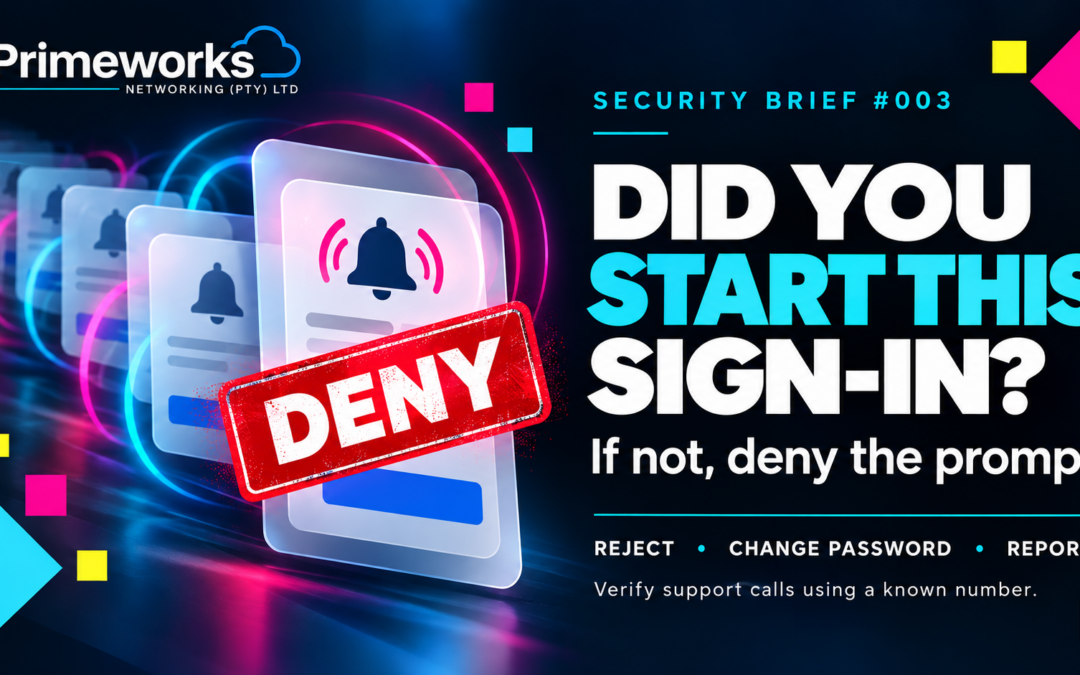
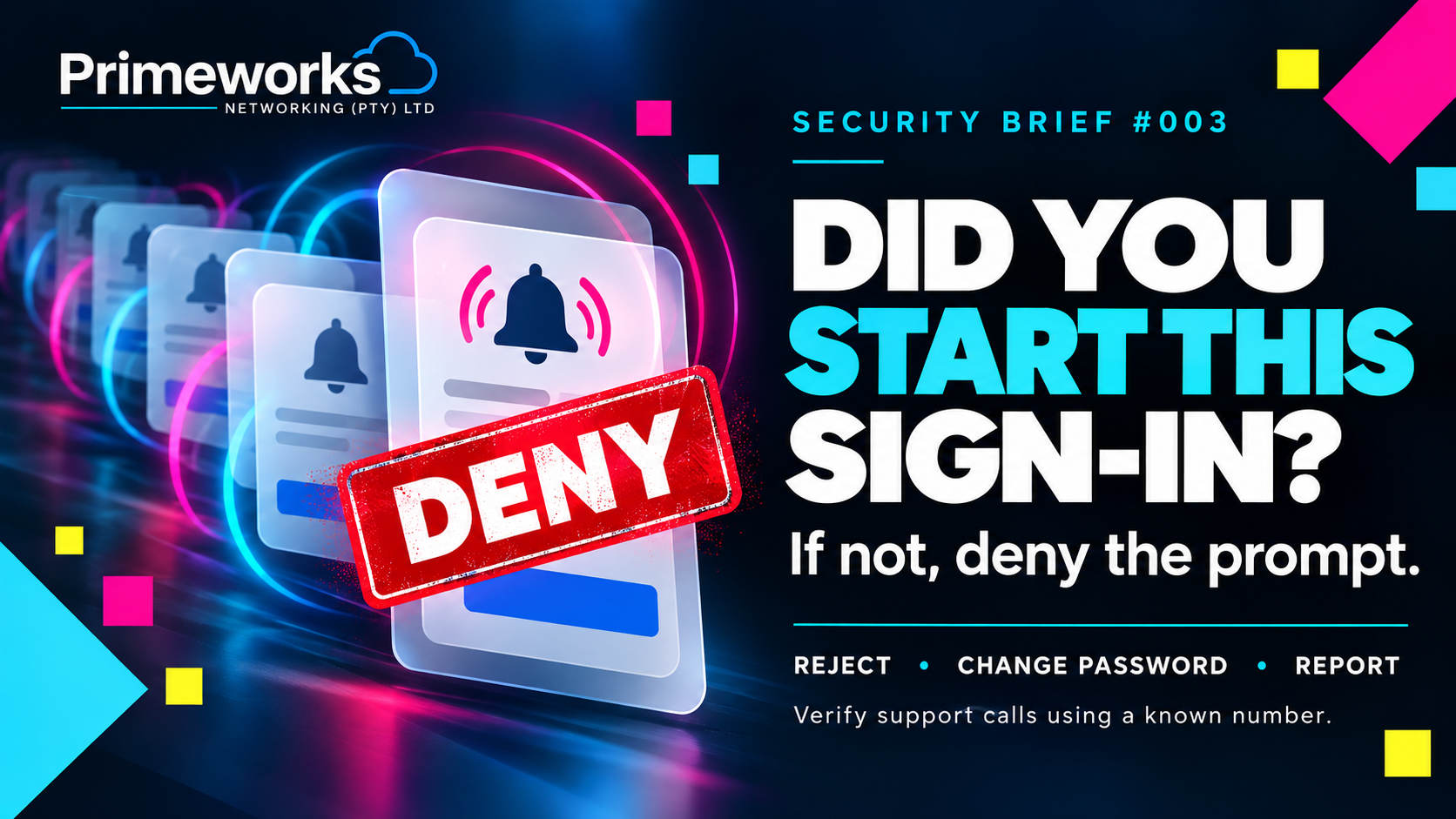
Your phone lights up with a request to approve a sign-in. You are not signing in. A few minutes later, it happens again. Then someone calls, says they are from IT and asks you to approve the next request so they can “fix” your account.
MFA means multi-factor authentication: the extra check, often on your phone, that helps protect an account after a password is entered. It remains an important defence. The attacker in this scenario is trying to persuade you to perform the extra check for them.
The threat: repeated prompts and a convincing call
An attacker may attempt to sign in with your username and password, triggering an approval request on your phone. They may try repeatedly, hoping you approve one to make the notifications stop. This is often called MFA fatigue or prompt bombing.
A second tactic is to call or message while the prompts arrive. The caller may claim to be from your company or Primeworks, say an account is being repaired, and insist that you approve the next request. A caller's title, familiar name or displayed telephone number does not prove who they are.
Repeated, unexpected prompts may mean that someone knows your password. They are not proof on their own: a delayed request or an application retry can have another explanation. Either way, treat them as a security incident until your IT team checks the sign-in activity.
Warning signs anyone can recognise
- A sign-in approval appears when you have not opened a sign-in page or an app requiring you to sign in.
- Requests arrive repeatedly, particularly after you have rejected one.
- Someone claiming to be IT tells you to approve an unexpected prompt, read out a one-time code or enter a number that appeared in a sign-in you did not start.
- The caller asks you to use a link, number or chat they supplied instead of your company's normal support route.
- You feel pressed to approve “just this once” to stop the alerts or prevent an account from being locked.
What to do immediately
- Reject the request. Choose Deny, No or Reject as your app presents it. If it offers Report suspicious activity, use that option too. Never enter a matching number or share a code for a sign-in you did not initiate.
- End the suspicious support call. A person claiming to be from IT must not ask you to approve a sign-in you did not start. Call your company's IT team or Primeworks using a number already in your records or on the official Primeworks website. Do not call back a number supplied by the caller.
- Change your password promptly. Open your usual company sign-in or password-change route yourself. If your organisation manages password resets, ask its verified IT team to do it. Do not follow a link sent in the suspicious call or message. Use a new, unique password.
- Report it immediately. Tell IT when the prompts started, how many you received, whether you approved any, and whether a caller contacted you. Existing Primeworks clients can email support@primeworks.co.za or call 011 887 3900 through their known support details.
If you accidentally approved a prompt or gave someone a code, say so when you report it. Quick reporting lets IT reset the password, revoke active sign-ins, review the account and check whether any unauthorised access occurred. Do not wait for visible evidence of misuse.
How Primeworks helps
Primeworks helps South African businesses secure Microsoft 365 accounts, review suspicious sign-ins, improve account monitoring and give staff a clear route to report unusual requests. A simple habit can prevent a great deal of damage: approve only the sign-in you started yourself.