It is Monday morning. The accounts folder on the office server will not open. A laptop holding this month’s quotes was stolen from a car over the weekend. And someone has just noticed that a shared project folder was deleted two weeks ago.
None of these is really a technology question. Each one is a recovery question: what can you get back, from when, and how quickly?
A business backup is a separate copy of your information that you can restore when the original is lost, damaged or locked. This brief explains how backup differs from sync, how to combine on-premise and cloud options, and how to know your backups will work when you need them.
Why backups still matter
Data is lost in ordinary ways: a file deleted by mistake, a failed hard drive, a stolen laptop, a compromised account or ransomware. The UK’s National Cyber Security Centre (NCSC) describes regular backups as the most effective way to recover from destructive ransomware.
Backups do not prevent an incident, and they do not stop criminals from stealing a copy of your data. What they give you is a way back.
Backup is not the same as sync
Many businesses keep files in Microsoft 365, in OneDrive and SharePoint, and sync them to staff computers. Sync is convenient: if a laptop is lost, the files are still in the cloud.
But sync copies changes in both directions. Delete a file in your synced OneDrive folder and Microsoft deletes it from OneDrive as well. If ransomware encrypts files on a synced computer, the damaged versions can sync too.
Microsoft 365 does give you some ways back, including version history, the recycle bin and, for OneDrive, the option to restore to a point within the last 30 days. These are useful, but they are time-limited and sit inside the same service and account as the live data. The NCSC advises organisations not to rely solely on these features.
A backup is different. It is a separate copy, kept somewhere else, with its own history, that the accounts people use every day cannot easily change or delete.
Know where your data lives
Before choosing any backup option, list the places your business information is actually kept:
- Office server or shared storage, including accounting and other business applications that run on it.
- Laptops and desktops, especially files saved only to the Desktop, Documents or Downloads folders.
- Microsoft 365: mailboxes, OneDrive, SharePoint and Teams.
- Other online services, such as cloud accounting or your website.
This matters because each backup covers only what it is set up to cover. A server backup does not include Microsoft 365. A Microsoft 365 backup does not include a file saved only on someone’s laptop.
On-premise and cloud: choosing the right combination
If you have data on the premises, such as a server or shared storage, a local backup copy allows fast restores of large files or whole systems. You also need a copy away from the office, usually in a cloud backup service, so that a fire, theft or flood does not take both.
If your data lives in the cloud, the backup should be kept on a separate platform, independent of the service that holds the live data. Check exactly what is covered: mailboxes, OneDrive, SharePoint and Teams are often handled separately. A cloud-first business does not necessarily need backup equipment in the office.
For laptops and desktops, keep work in OneDrive or SharePoint where practical, and confirm those locations are included in your separate backup. If files must stay only on a computer, include them in its backup.
A common starting point is the 3-2-1 approach: three copies of your data, on two different types of storage, with one kept off-site. Treat it as a guide, not a shopping list. More important, at least one copy should be offline or protected so that it cannot be changed or deleted from the accounts used every day. Attackers often look for backups early in an attack, and a backup they can reach is a backup they can destroy.
Retention: how far back can you go?
Retention is how long backup versions are kept. It matters because problems are not always noticed straight away: a deleted folder may only be missed weeks later, or a compromised account may have been misused for some time.
If backups only go back a week, a problem discovered later may leave you without a clean copy from before it happened. The NCSC gives an example of daily backups kept for a month and monthly backups kept for a year. That is an example, not a rule. Set retention around how your business works and what it must keep.
Recovery: the test that matters
A backup is only proven when you restore from it. Four habits make the difference:
- Agree what matters most. Decide how much work the business could afford to redo, and how long it could manage without each system. The answers set how often to back up and what to restore first.
- Check that backups actually run. Someone should receive failure alerts and act on them. A scheduled backup is not the same as a successful one.
- Test restores regularly. Restore a file, a mailbox and, from time to time, a whole system. Check the data is complete and usable.
- Write down the steps. Record what to restore first, who does it and who to call.
A quick check for owners and managers
Ask your IT provider these five questions:
- Do we know every place our business data is kept?
- Is our Microsoft 365 data backed up to a separate platform, or are we relying on recycle bins and version history?
- Is at least one copy off-site and protected from everyday accounts?
- How far back can we restore, and is that far enough?
- When did we last test a restore, and did it work?
Any “not sure” is the place to start.
Frequently asked questions
Is OneDrive a backup?
Not on its own. OneDrive is a sync and storage service with useful recovery features, but deletions and damaged files can sync, and its recovery options are time-limited.
How often should we back up?
It depends on how much work you could afford to lose. For most small businesses, at least a daily backup is a sensible starting point. Systems that change constantly may need more frequent backups.
If everything is in the cloud, do we still need backup?
Yes, but not necessarily equipment in the office. You need a backup suited to your cloud data, plus a plan for any files kept only on computers.
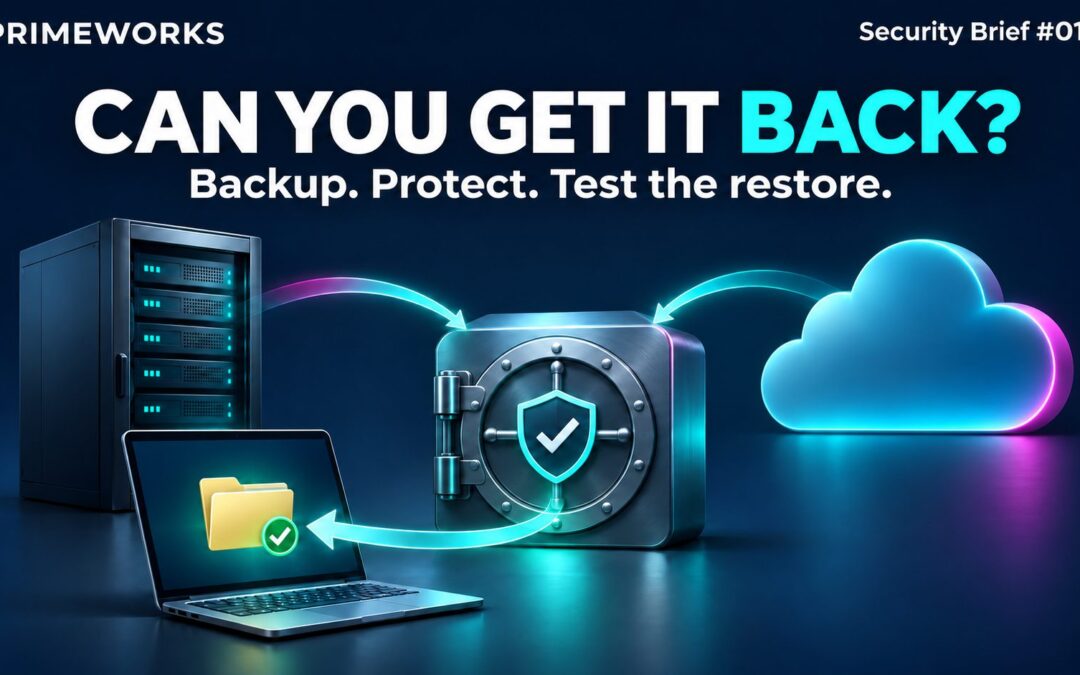
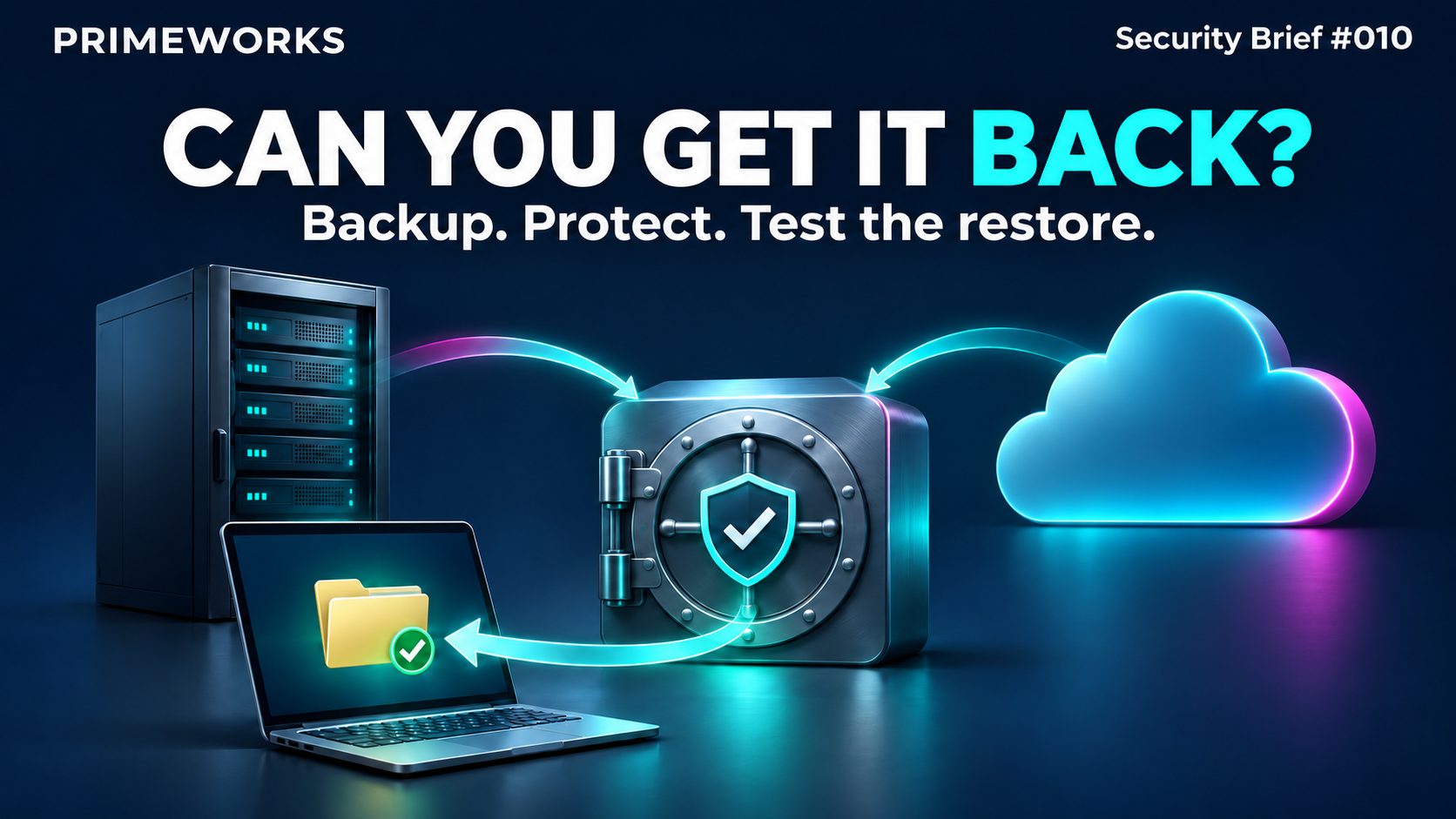
Back up. Protect a copy. Test the restore. Knowing you can get your data back is worth more than assuming you can.
Primeworks manages business backup and recovery for on-premise systems and Microsoft 365, including monitoring and help when a restore is needed. Existing customers can log a support ticket by emailing support@primeworks.co.za. For a first conversation about your business, request a security review.